Skip to content

Directive (EU) 2023/2673 · applies from 19 June 2026

The EU withdrawal button, with a confirmation and a log

From 19 June 2026, shops that sell online to EU consumers have to offer a withdrawal function. StoreCompliant adds the withdrawal button, a two-step form, a dated confirmation email and a record of every request.

Button, form, email and log on every plan. Available for Wix Stores.

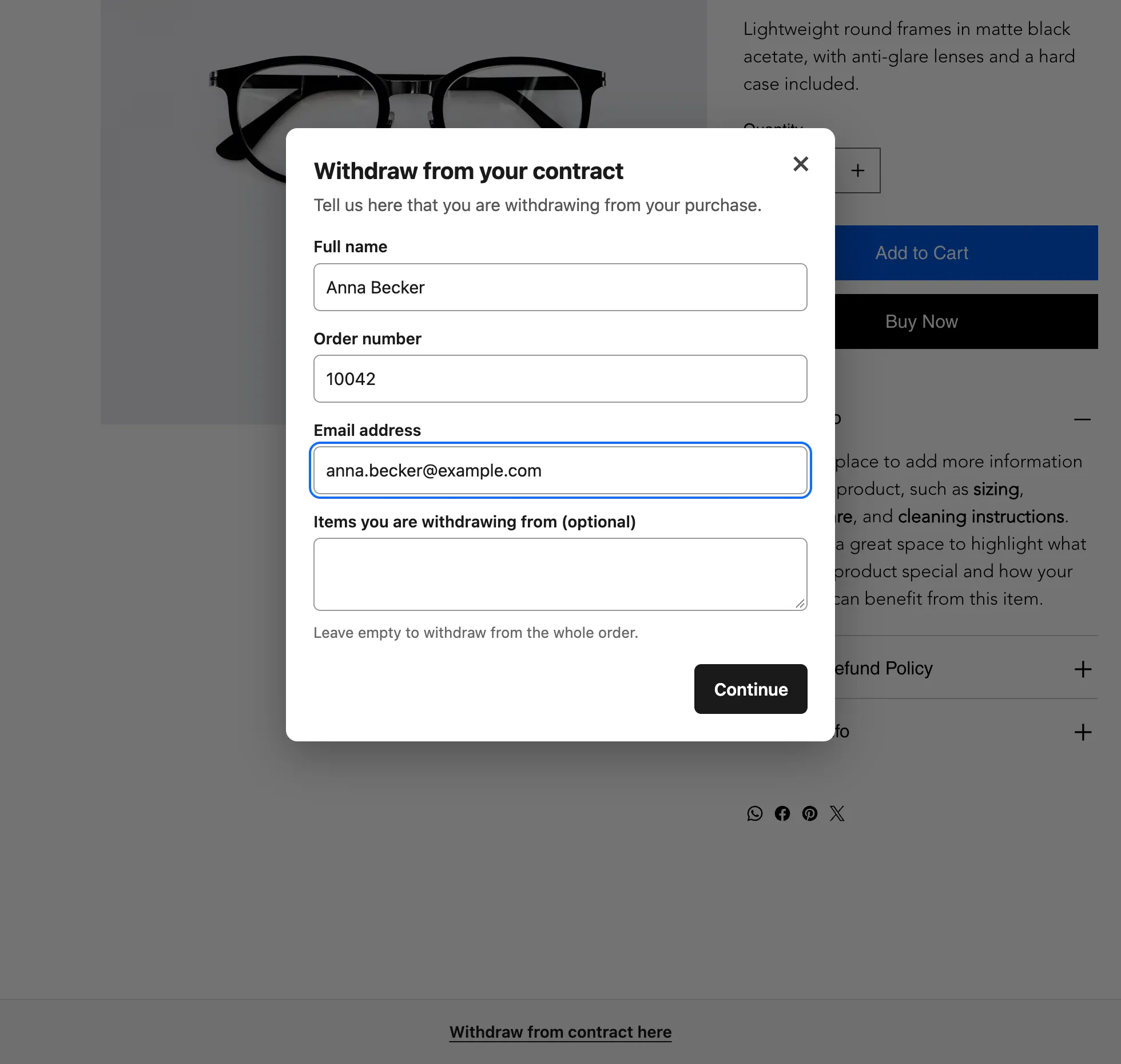
The withdrawal form opened on a shop page, titled “Withdraw from your contract”, with fields for full name, order number, email address and optional items, and the “Withdraw from contract here” link at the bottom of the page.

The rule

What the withdrawal rule asks for

Article 11a of the Consumer Rights Directive, inserted by Directive (EU) 2023/2673, covers distance contracts concluded through an online interface. In short, it asks for four things. Here is each one, next to what the app puts on your shop.

A function that is easy to find

Labelled “withdraw from contract here” or an equally unambiguous wording, easily accessible and available throughout the withdrawal period.

In the app: A “Withdraw from contract here” bar on every page, or a widget in your footer.
A short statement from the consumer

The consumer states their name, identifies the contract and gives an electronic means for the confirmation.

In the app: A form with name, order number and email address, plus an optional field for the items concerned.

A confirmation step

The consumer submits the statement with a “confirm withdrawal” button.

In the app: A second step in which the shopper confirms the withdrawal.

An acknowledgement of receipt

Sent by the trader on a durable medium without undue delay, including the date and time.

In the app: A dated confirmation email to the shopper, and an entry in your log.

The standard withdrawal period for distance sales is 14 days (Directive 2011/83/EU, Article 9). The withdrawal function is a way for the shopper to tell you they are withdrawing; it does not change who may withdraw or from what. Read the guide to the EU withdrawal button.

For the shopper

Two steps, then a confirmation

  1. Fill in the form

    The shopper opens “Withdraw from contract here” and enters their name, order number and email address. A fourth field lets them name the items concerned; left empty, the withdrawal covers the whole order.

  2. Confirm the withdrawal

    Nothing is submitted at the first step. The shopper confirms the withdrawal in a second step, which is how the rule describes it.

  3. Receive a dated confirmation

    The shopper gets a confirmation email with the date of the request. It is theirs to keep, and the same request is in your log.

The button, the form and the email are in the shopper’s language: all 24 official EU languages, chosen automatically from the language of the shop page.

For you

A log of every withdrawal request

Each request appears in the Withdrawals tab of your dashboard once the shopper has confirmed.

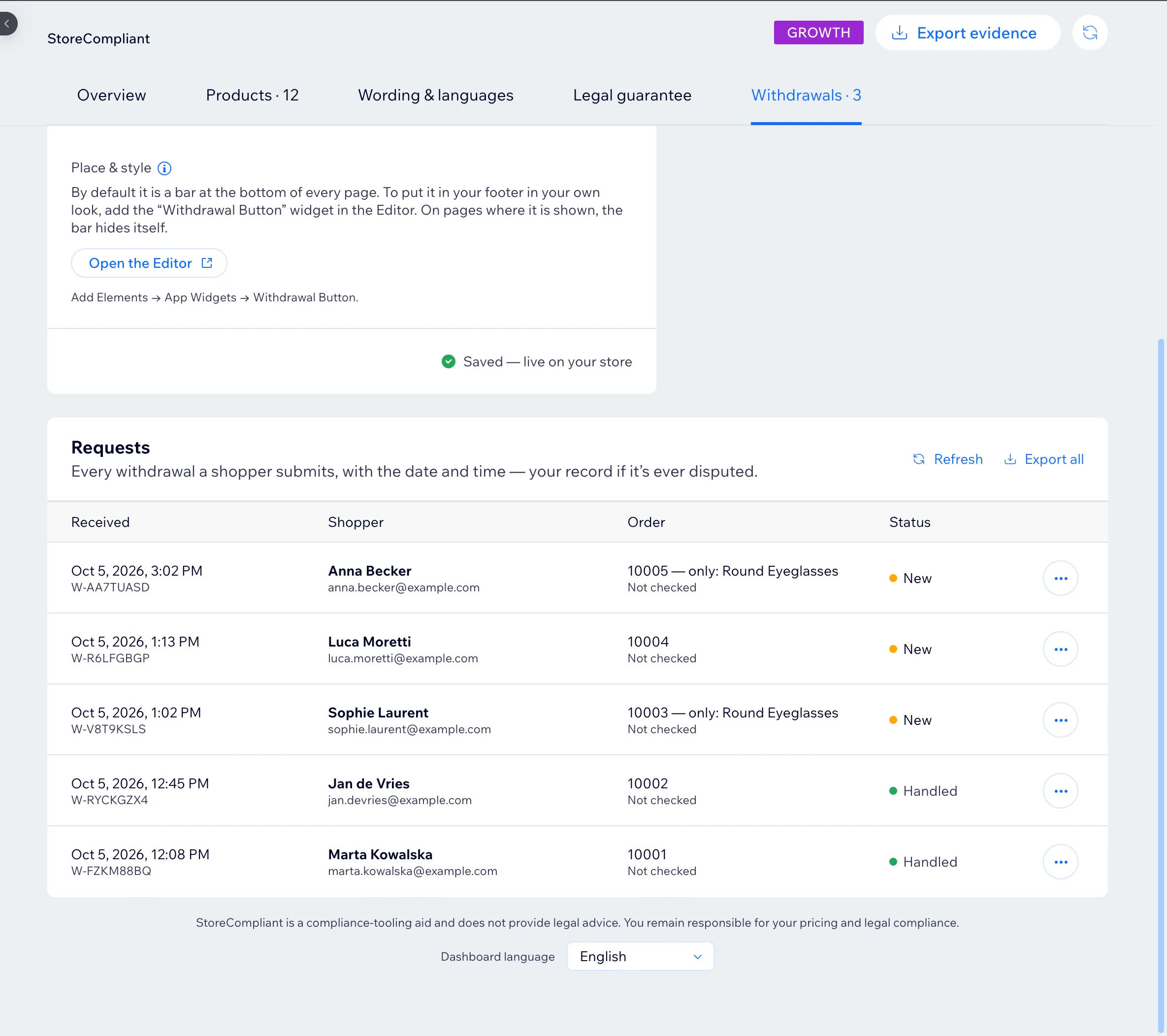
  • Every entry has the date and time, a reference number, the shopper’s name and email address, the order number and any items named.
  • A status shows where it stands: New until you have dealt with it, then Handled.
  • Order check (paid plans). The app checks each request against the order it names, so you can see whether it matches before you act.
  • CSV export (paid plans). Download the whole log as a file for your own records.

See what each plan includes

The Withdrawals tab of the StoreCompliant dashboard: a list of requests with the date and time received, a reference number, the shopper’s name and email, the order number and a status of New or Handled.

Placement

Where the withdrawal button sits

The rule asks for a function that is easily accessible. You choose between two placements.

Default

A bar on every page

A slim bar at the bottom of every page with the link “Withdraw from contract here”. It needs no set-up: switch the feature on and it is there on every visit.

Optional

A widget in your footer

To put the button in your footer in your own look, add the “Withdrawal Button” widget. On Wix: Add Elements → App Widgets → Withdrawal Button. On pages where the widget is shown, the bar hides itself, so shoppers never see both.

What it leaves to you

The request is recorded; handling it is yours

  • The app receives the statement, confirms receipt and keeps the record. It does not issue the refund or arrange the return of the goods.
  • It does not decide whether a withdrawal is valid, for example whether the product is one a consumer can withdraw from or whether the period has passed.
  • StoreCompliant is a compliance aid, not legal advice. Your returns policy and how you handle each request remain your responsibility.

Questions about the withdrawal button

What is the EU withdrawal button?

Directive (EU) 2023/2673 adds Article 11a to the Consumer Rights Directive. For distance contracts concluded through an online interface, the trader must make a withdrawal function available, labelled “withdraw from contract here” or an equally unambiguous wording. The guide to the EU withdrawal button goes through the rule.

From when does a shop need a withdrawal function?

The rule applies from 19 June 2026.

Where does the withdrawal button appear on my shop?

By default it is a bar at the bottom of every page. If you prefer it in your footer in your own look, add the “Withdrawal Button” widget instead; on pages where the widget is shown, the bar hides itself.

What does the shopper receive after confirming?

A confirmation email with the date of the request, which they can keep. You receive the request in your dashboard with a reference number.

Does the app refund the order or arrange the return?

No. It takes the withdrawal statement, confirms receipt to the shopper and records the request. The refund and the return of the goods stay with you; when you have dealt with a request, you mark it as Handled.

What do paid plans add to the withdrawal button?

An automatic check of each request against the order it names, and a CSV export of the log. The button, the form, the confirmation email and the log are on every plan. See pricing.

All questions and answers

Put the three EU notices on your storefront

Free for up to 50 products. Set-up takes a few minutes and needs no code.

Shopify is in development and WooCommerce is planned. See all platforms.